
Editor basics
Navigate quickly
Section titled “Navigate quickly”Use the Explorer for project files and Search for workspace-wide text. Open the Command Palette with Ctrl+Shift+P on Windows/Linux or Cmd+Shift+P on macOS to discover commands without memorizing menus.
Useful editor shortcuts include:
| Task | Windows/Linux | macOS |
|---|---|---|
| Command Palette | Ctrl+Shift+P |
Cmd+Shift+P |
| Quick Open | Ctrl+P |
Cmd+P |
| Find in files | Ctrl+Shift+F |
Cmd+Shift+F |
| Toggle terminal | Ctrl+` |
Cmd+` |
Review changes before you keep them
Section titled “Review changes before you keep them”WhoseDev can show proposed edits as changes in the editor. Read the diff, then use Keep to apply a change or Undo to discard it.
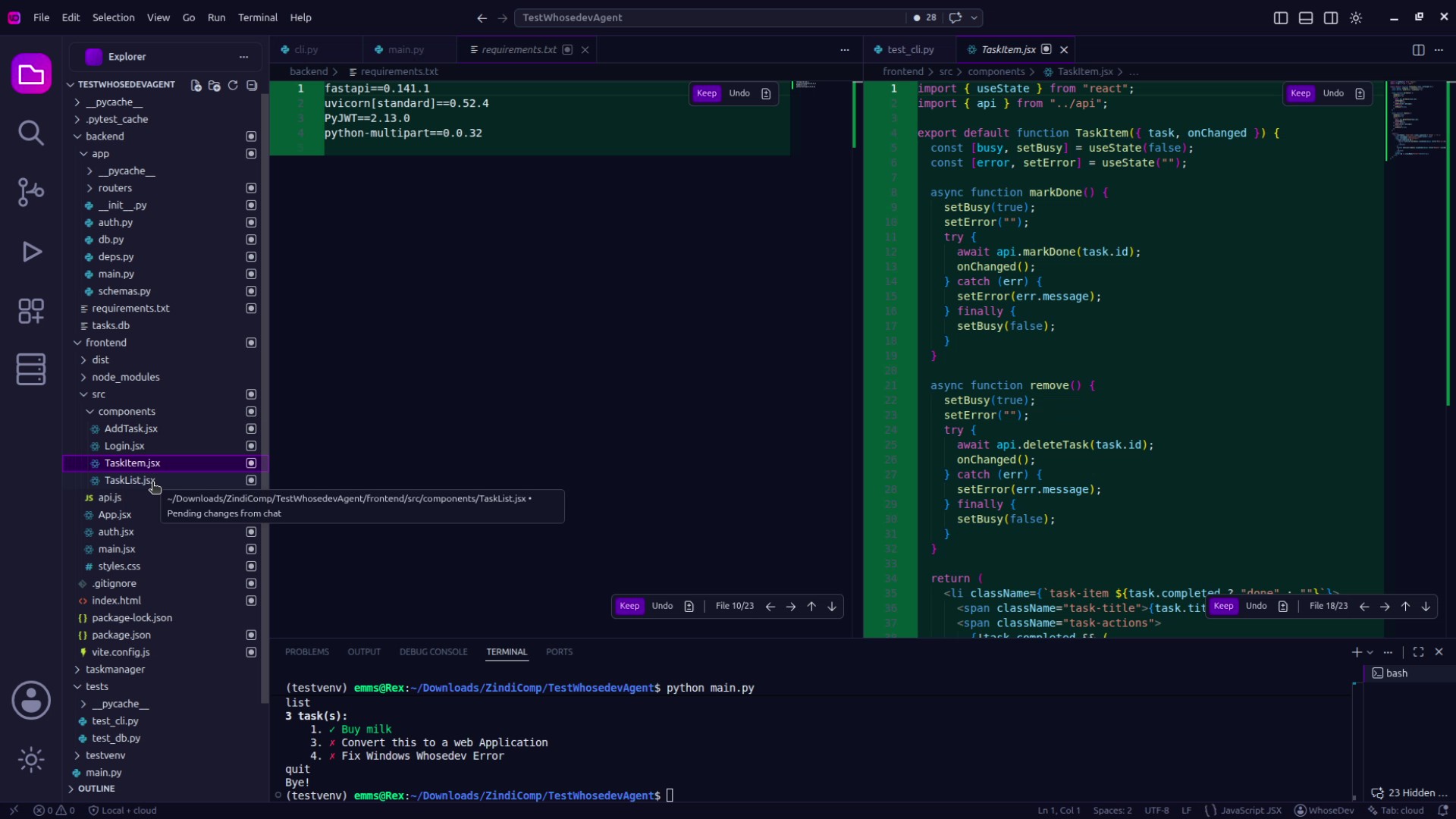
Use Source Control to inspect all changed files before committing. AI-generated changes should be reviewed like any other code change.
Work in the integrated terminal
Section titled “Work in the integrated terminal”Open a terminal from Terminal > New Terminal. The terminal runs in the workspace so you can install dependencies, run tests, and use your project’s normal command-line tools.
Warning: Commands can modify files, packages, or remote systems. Read a command before you run it and confirm it is appropriate for your project.