
Work with WhoseDev AI chat
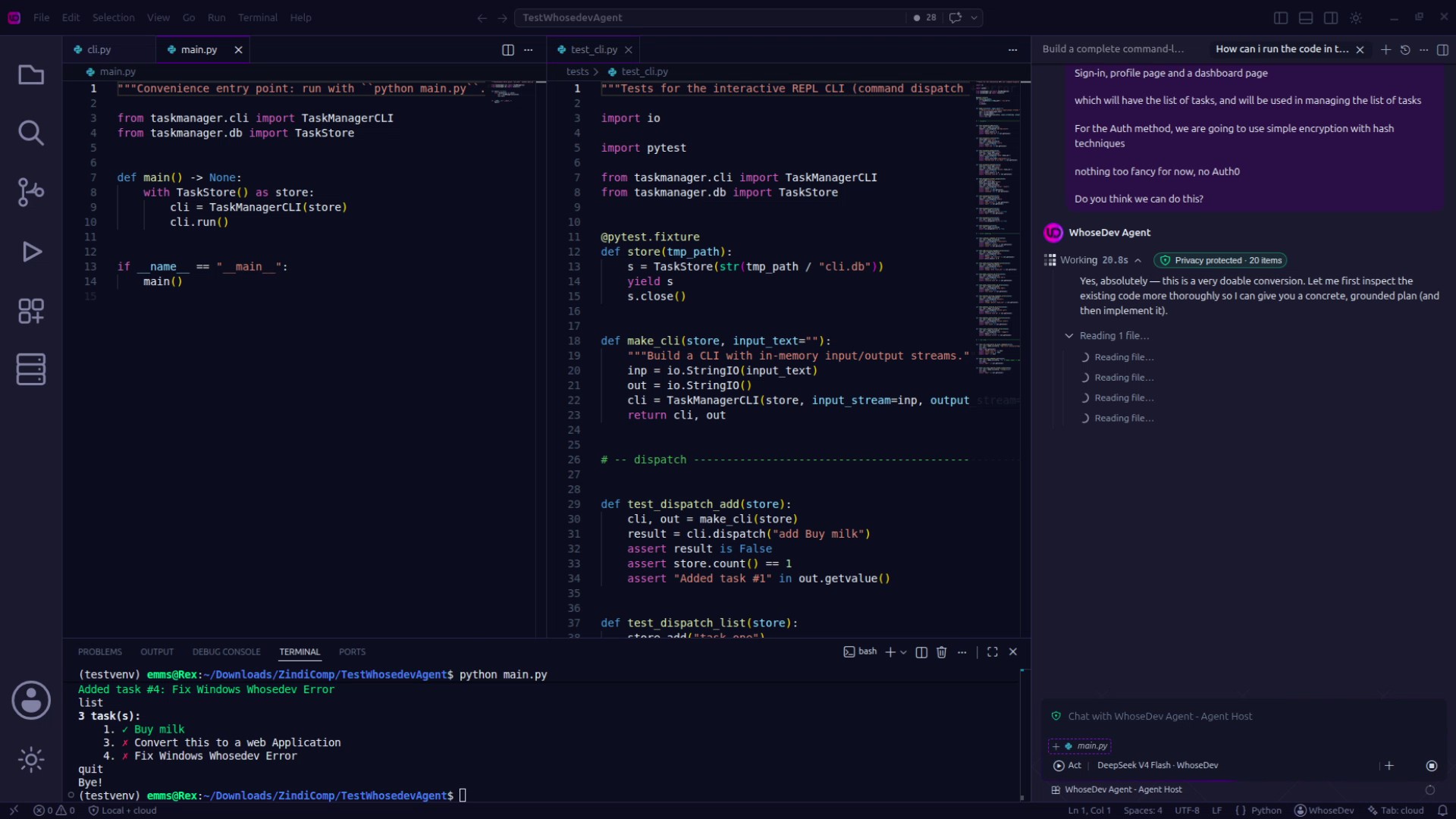
Open WhoseDev AI, describe the outcome you want, and choose the mode that fits the task.
Choose a mode
Section titled “Choose a mode”| Mode | Best for | What it does |
|---|---|---|
| Ask | Understanding | Helps investigate and answer questions without changing files. |
| Plan | Preparing work | Produces a proposed approach for you to review before implementation. |
| Act | Making changes | Works through the task with tools and asks for confirmation where required. |
You can cycle modes with Shift+Tab while the chat input is focused, or select the mode from the composer.
Choose a model
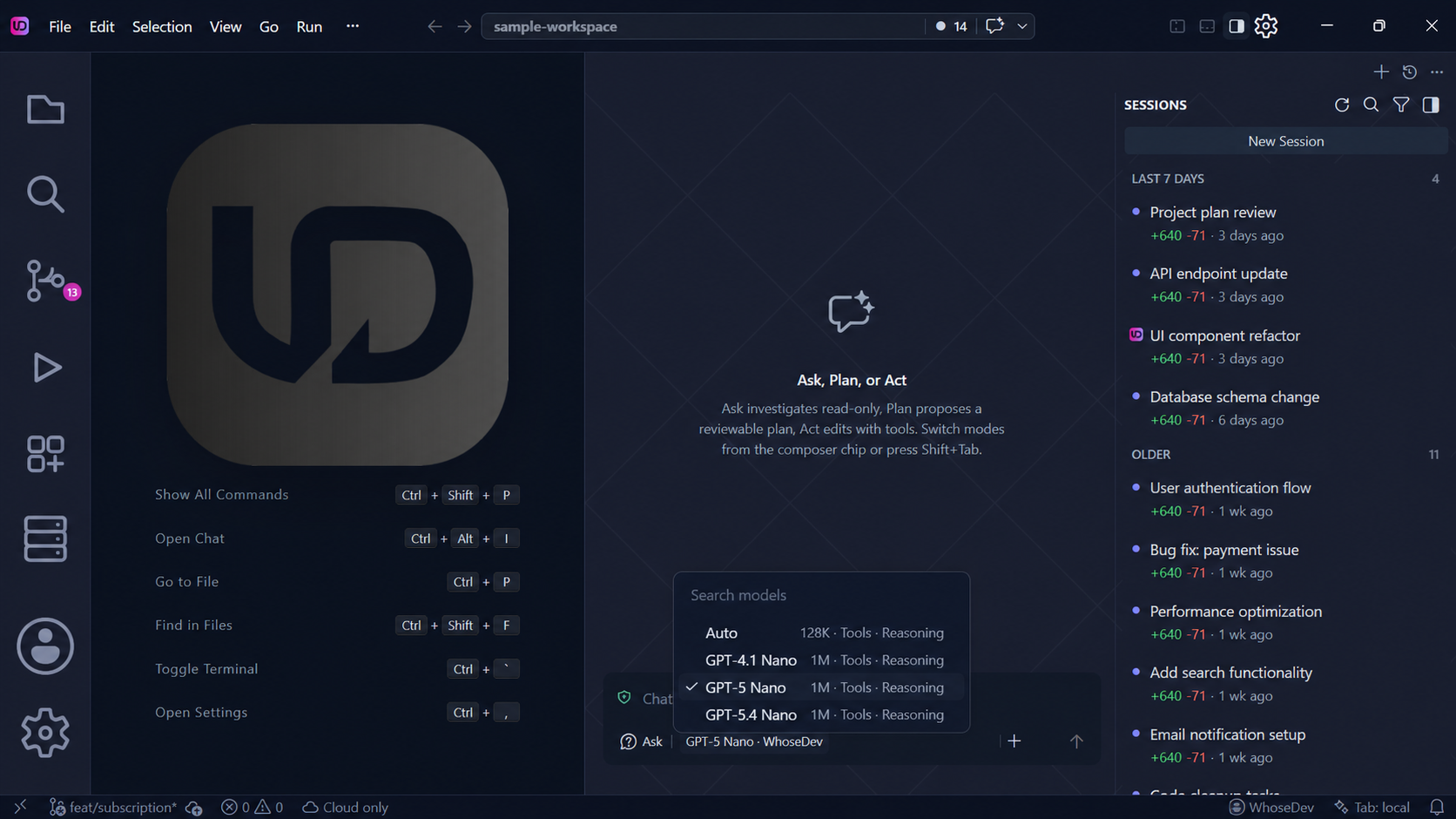
Section titled “Choose a model”Use the model picker in the chat composer to choose an available model. The models you see depend on your selected route, account, workspace policy, and local setup.
Ask effective questions
Section titled “Ask effective questions”Give the assistant enough context to orient itself, then state the result you need.
Explain the authentication flow in this workspace. Identify the entry point,the session storage location, and the safest place to add a new provider.For a change, state constraints up front:
Add a loading state to this form. Preserve the current API contract, keep thebutton accessible, and show me the plan before editing files.Keep control of changes
Section titled “Keep control of changes”Use Ask to investigate and Plan to review an approach. When using Act, inspect file changes and command output before accepting the result. You can continue an inline edit in the durable chat panel when a task grows beyond one selection.
Include relevant context
Section titled “Include relevant context”WhoseDev can use active-file, open-editor, workspace, and selection context depending on the request and your settings. Keep sensitive context out of a request when it is not needed, and see Privacy and usage before choosing a cloud route.